Deus In Machina (DIM) is a writing tool intended for small, medium and large projects such as novels, short stories, and non-fiction.
While offering editing and formatting tools well known from other text editors DIM features powerful methods to add a semantic level to your project. It is as much a world building and research tool as it is a writing tool.
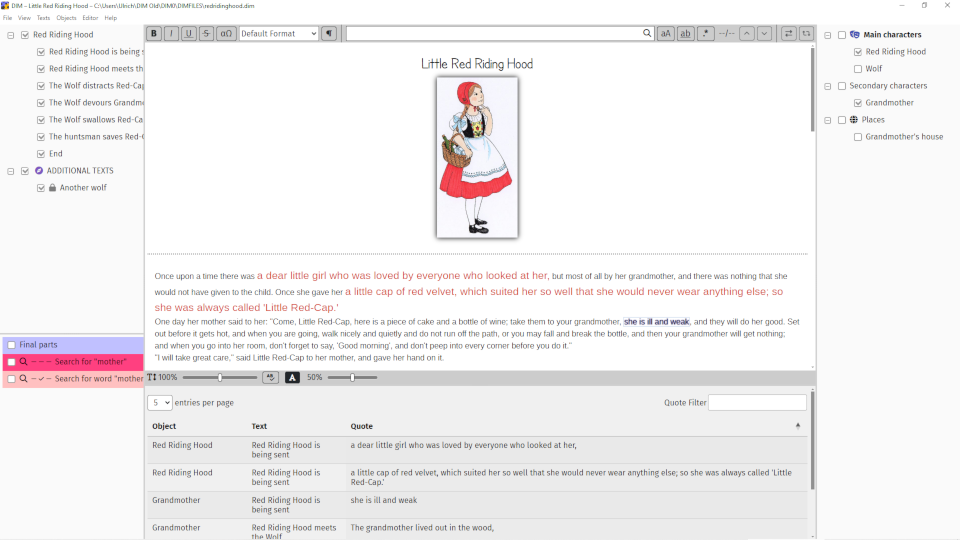
The real magic happens when you connect both levels, syntactic (text) and semantic (world). You can tag any text passage with any world item (called object), resulting in a list of quotes that are connected to that item. When you edit one of these text passages the respective quote is updated automatically. In the text editor you can easily inspect what objects are connected to a text. Just activate the objects you are interested in and they get highlighted by their fully customizable individual style.
If you ever write more than a shopping list, definitely! DIM is a writing tool intended for small, medium and large writing projects. While it features some well known standards that come with many word processors, DIM has some outstanding qualities:
DIM is Free and Open Software and can be used freely by anyone. It is licensed under the terms of the GNU General Public License.
Instructions for installing and building on Windows and Linux are available on Github.
Not for the time being as I don't have access to a Mac based system.
While DIM most certainly won't set your computer ablaze it still is in an early development phase. There might be errors not yet discovered. So, please save your work frequently and help improving DIM by your feedback.
No. For now, the only guidance is this FAQ, some inline help and a couple of sample projects.
It's short for Deus In Machina, Latin for "God in the machine". This term is a pun to the infamous plot device Deus Ex Machina that was common in ancient Greek theater but should be avoided in modern fiction.
You are welcome!
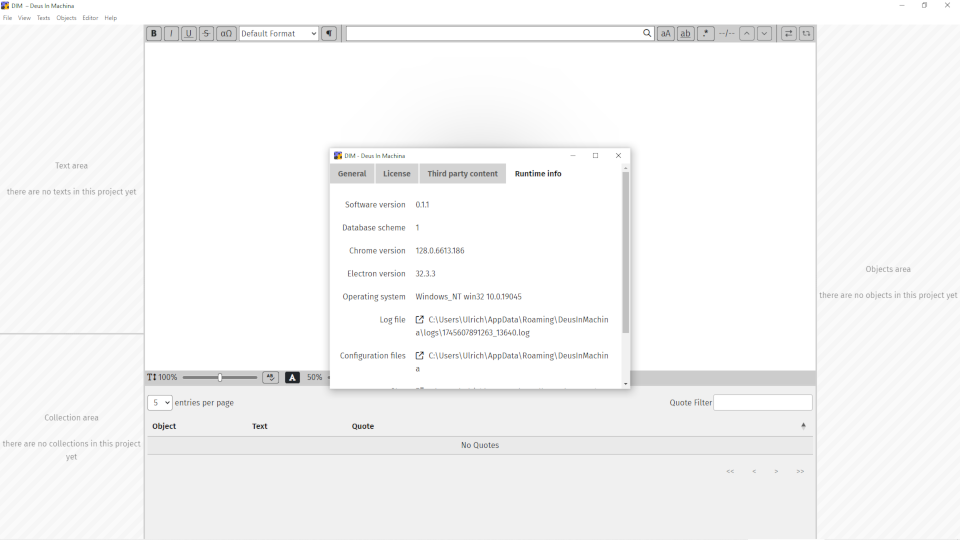
In case of error reporting please provide the logfile that is linked in the tab Runtime Info of the About Window (to open use menu item Help → About DIM). If possible, activate the setting start in Debug Mode first which makes logging much more detailed.
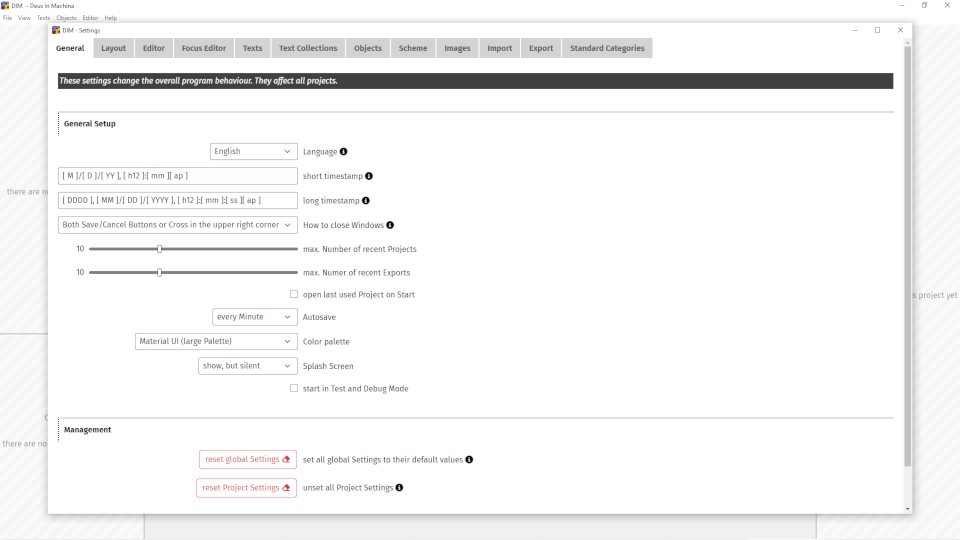
Currently, English and German are supported. What language is used depends on your system defaults, but you can change it in the settings.
Certainly -- DIM is i18n-ready and, translators volunteering, could be extended to additional languages.
To show a text's content and open it for editing it must be activated. You can do this
You can activate as many texts as needed and adjust the set of texts shown in the editor at any time.
Either
Just move the respective tree item to the desired position in the tree and drop it there. To move a whole branch, keep the Shift key pressed.
To copy a text select the item in the tree, press Ctrl and move the item to a new position in the tree. A copy of the text will be placed there.
The text copy inherits all object connections of the original text.
To copy a whole branch of the tree select the top item of the branch, press Ctrl and Shift simultaneously and move the item to a new position in the tree. A copy of the branch will be placed there.
Put the text in the editor by activating it. Navigate to the position you want the text to be split at and use Split Text in the editor's context menu.
Select two or more items in the tree (using Ctrl) and use menu item Texts → Join selected texts. Those texts further down the tree will be appended to the text highest up in the tree and removed from their original position.
To join texts with no newline inserted between texts use menu item Texts → Join selected texts seamlessly.
You can set the display style (bold etc) in the text's properties or add an icon that is shown next to the item's name in the tree.
There are several ways to get these:
To delete a text
A deleted text is gone for good. You cannot recover it. If you want more control you could create a top level item called "Trash" or the like, maybe give it a recycle icon and move unwanted texts there, keeping them until you might change your mind.
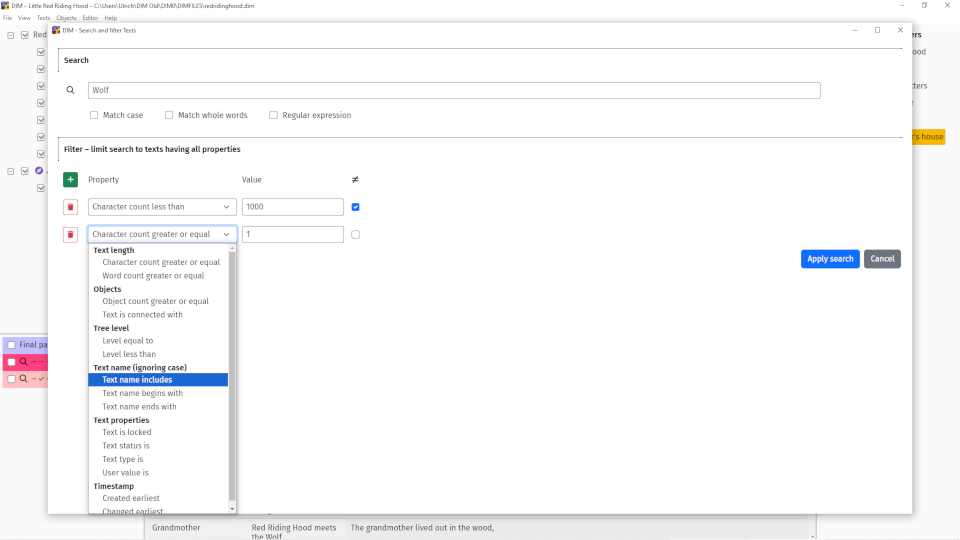
Use menu item Texts → Search and filter to open a new window where you can
The texts fulfilling all aspects of the search/filter are put in a text collection. See Text Collections for more details.
Yes, this is possible by importing the project. See the Imports section.

Use the buttons in the editor's menu bar or the respective
items in the editor's context menu to change the selection
to bold, italic,
underline or striketrough.
Just select the format from the dropdown in the editor's menu bar. It is applied to all paragraphs of the current selection.
In the editor's menu bar you find a search bar. The search covers all texts currently shown in the editor. If you want to find which texts in your project contain a search phrase, being currently shown in the editor or not, please use menu item Texts → Search and Filter.
The search bar provides a second layer for replacing. Switch between layers by clicking on the looking glass icon.
Replacements can be done one after the other or for all search results at once. Please be aware that a single step replacement cannot be undone.
To zoom in or out you can either use the scroll wheel (or touch bar pinch gesture) or use the zoom slider in the editor's status bar. To reset to standard zoom click on the percentage figure.
Use the button labeled Special Characters in the editor's menu bar to open a window displaying a variety of characters and symbols. You can move the cursor while the window is open and insert as many symbols as needed.
Use drag and drop or cut/copy/paste.
When text is selected in the editor you can use the web tools at the end of the editor's context menu. You can search for the selected text on the web, translate it, find synonyms or whatever a website might offer.
While there is a standard set of tools provided you can adapt them in the settings to your specific needs. Flexibility is key in complex work processes, and writing for sure is a complex task.
Yes, and there are two options. Use menu item Editor → Print editor contents to print the editor's content either to one of your system printers or into a PDF file. What you see is what is printed -- that is, the currently activated texts with those passages highlighted that are connected to the currently activated objects.
Use menu item Editor → Pragraph formats to open the formats window.
Use the controls to change various aspects of the format's style. You can see the effect of each change in the preview box. The sample text used for preview can be changed in the settings.
In the editor select the format you want to apply to a paragraph (or several paragraphs within a selection). If you change a format's style this immediately effects all paragraphs the format is applied to.
Yes, this is possible by importing the project. See the Imports section.
There are two ways to check for spelling errors:
You can change this by using Editor → Language. The language used for spell checking is independent of the language of the user interface. There is no automatic recognition of the language of the texts in the editor.
There are three buttons you can use for a unknown word:
Use Editor → List of correct Words to open a window where all words are listed and new words can be added. Typically, you want to add uncommon proper names to the list. The list is saved as part of the project, so each project has its own list.
Yes, this is possible by importing the project. See the Imports section.
You can add images by either
DIM can handle jpeg and png images.
You can change the size of images as they appear in the editor, and have them either displayed inline or as separate lines.
Images that are part of object tags can be styled with an extra border when the object is activated.
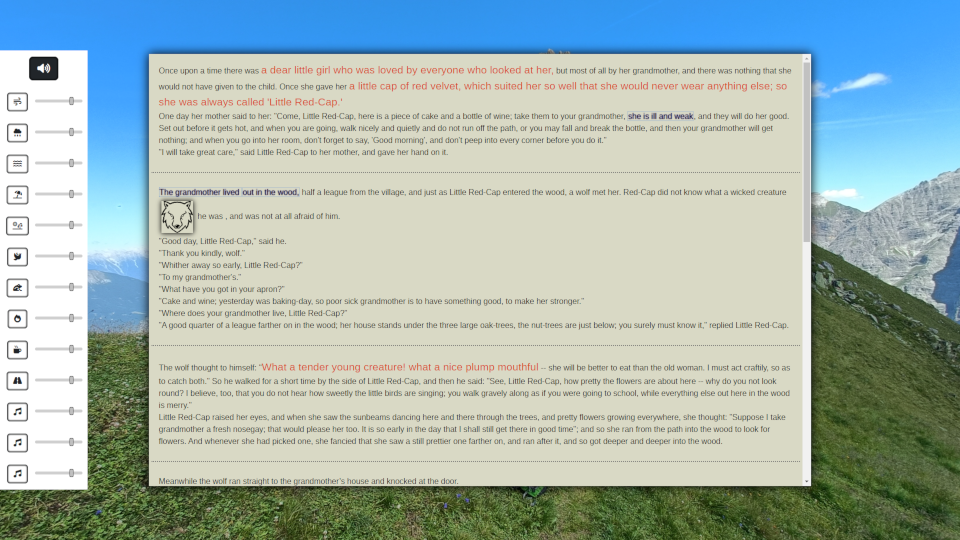
Focus mode can be opened by menu item View → Focus mode to display all texts currently in the editor, or in an editor's context menu to display just the single text at hand.
To return from focus mode use the Escape key.
In the settings you can set background images and sound effects. While in focus mode you can adjust the editing width and height and change the sound effects.
No, you cannot change what parts of a text is connected to objects. Please do this in standard mode.
You can change which objects are displayed/highlighted in focus mode, though.
No. The sounds are limited to what is provided.
Text collections are sets of texts that are grouped
together. The texts in a collection come in a flat list no
matter what their level in the text tree is. They are
ordered along the tree sequence, though.
There are two collection types:
For a regular collection use menu item Texts → New Text Collection. For a search collection use menu item Texts → Search and filter.
In a text's context menu you find a submenu Add to Collection with all (non search) collections listed.
In a text's context menu you find a submenu Remove from Collection with all collections listed the text is part of.
In a collection's context menu use item Delete collection
Either
You can set the display style (bold etc) in the collection's properties or add an icon that is shown next to the item's name in the collection list.
In a search collection's properties you find a Search and filter tab that works the same way as the search and filter function that was used to create the collection.
By default, yes. But you can configure this in the settings.
To copy a collection select the item in the tree, press Ctrl and move the item to a new position in the tree. A copy of the collection will be placed there.
Yes. In a collection's context menu use Copy to non-search Collection to create a non-search collection that includes all texts currently covered by the search collection's search/filter criteria.
Yes, this is possible by importing the project. See the Imports section.
Objects represent arbitrary items (characters, places, buildings, devices, animals, weapons, ideas, and anything else you could think of). They are called "objects", but don't take that term too narrow. Objects span dead as well as living matter and even ideas.
Objects can be connected to those sections of a text that are relevant for the object, thus adding a semantical level to the text. If, for example, an object represents a story's main character the sentences or paragraphs giving a physical description of that character could be connected to the object.
Once the relationship between objects and texts is established it is easy to overview the relevant text sections and to highlight them in the editor if needed.
Either
Just move the respective tree item to the desired position in the tree and drop it there. To move a whole branch, keep the Shift key pressed.
To copy an object select the item in the tree, press Ctrl and move the item to a new position in the tree. A copy of the object will be placed there.
While the object copy inherits the properties of the original object as far as possible, the new object is not connected to any text.
To copy a whole branch of the tree select the top item of the branch, press Ctrl and Shift simultaneously and move the item to a new position in the tree. A copy of the branch will be placed there.
You can set the display style (bold etc) in the object's properties or add an icon that is shown next to the item's name in the tree.
To delete an object
The format of an object affects the styling of text passages that are connected to the object, highlighting those passages when an object is activated. You can set the format in the Style tab of an object property window.
Formats are inherited along the object hierarchy. If you do not set any format controls for an object it has the same style as its parent. All format settings for an object is affecting its children unless you are overruling them in any of the children individually.
Double click on an item in the object tree or use item Properties in an object's context menu.
An object must be activated for its effect to be shown. Do this by either
There are different ways to do this having selected some text:
Having selected some text, you can
Use menu item Objects → Search to open a window where you can search through various aspects of all objects to find the matching ones. In the result list you can open the properties of a listed object and (de)activate it.
To see an object's effect in the editor you must activate it. Click the checkbox of an item in the object tree. All text passages connected to the object are formatted in the object's style. If you activate more than one object the last activated object will get precedence on overlapping text passages.
To avoid any overlapping issues you can configure single selection mode by using menu item Objects → Single select mode.
As an alternative to showing relevant text passages in the full object's style you can switch to highlight mode by clicking on the "A"-symbol in the editor's status bar. In this mode the text not connected to an activated object is shown less opaque -- how much so can be adjusted between 0% (totally invisible) and 100% (fully visible and thus indistinguishable from the object related passages) using the slider next to the "A"-symbol.
Yes, this is possible by importing the project. See the Imports section.
Properties allow you to add content to objects. While it may be sufficient to have an object just with a name in certain cases, you may want to add more detail in others.
Schemes define what properties an object has. The content is in the properties themselves. While it may seem overengineered to have this scheme/property split it helps when you have more than one object of a kind.
Consider three or more characters you want to keep track of in your story. They all share the properties of name, height, weight, eye color, character description, birthday, and so on. Instead of adding these properties repeatedly to several objects, create one parent object (maybe called "character"), define its scheme to include all necessary properties, which will then be available in all objects placed one (or any) level down the tree hierarchy.
Object Schemes are inherited from parent objects, that's why. The scheme defined in a parent (or grandparent) object is part of the object's scheme and cannot be changed. The idea is that you use the hierarchy of objects to have more detail the further down an object is in the tree levels.
You could for example create an object "Building" with properties "Color", "Year of construction" and "Design". As its children consider one object "The Muzak Concert Hall" with additional property "Seats" and another object "Schlong Tower" with additional properties "Stories" and "Rooftop Terrace?". Of course both, highrises and concert halls have a year of construction, but seats are only relevant for one of them.
Overall, there are 13 types of properties you can choose from in the Scheme tab:
Header
Headers are just for organizing properties into groups. You can give them a name -- and that's it.
Relation
Using a relation you can connect the object with any other object. Describe the meaning of the relation in its name, e.g. "mother of" or "living in". You can specify a reverse relation (e.g. "son of" or "inhabitant of") which can be seen in the related object's overwiew tab and in a project's export.
Checkbox
With a checkbox you can provide a two valued property that can be set on or off. An example would be a property called "alive".
Slider
Sliders add a numerical range to an object. You specify a minimum and a maximum value as well as a step distance. The unit spec adds context. For example, use a slider for a person's age ranging from 0 to 125 (should suffice for all humans) with step 1 and unit "years".
Select dropdown
Provides a dropdown box where you can pick one value out of many. The values you can choose from are defined by a string seperated by "#" characters. You could define a property called "vehicle" using the string "bicycle#car#supersonic golfcart".
Radio
Much like a select, but all values are visible.
Color
A color box adds color information to an object.
Text line
You can type a short unformatted text into a text line, such as a person's name.
Text editor
In a text editor you can enter fully formatted longer texts, including images. Use the editor directly in the properties tab or open a detached window if you need more screen space.
Calender date
Adds a control to the properties where you can pick a single date. Provide a year range you can choose out of if you need more or less than the one hundred years in the past and in the future of today.
Calender range
You can set a date range with this control.
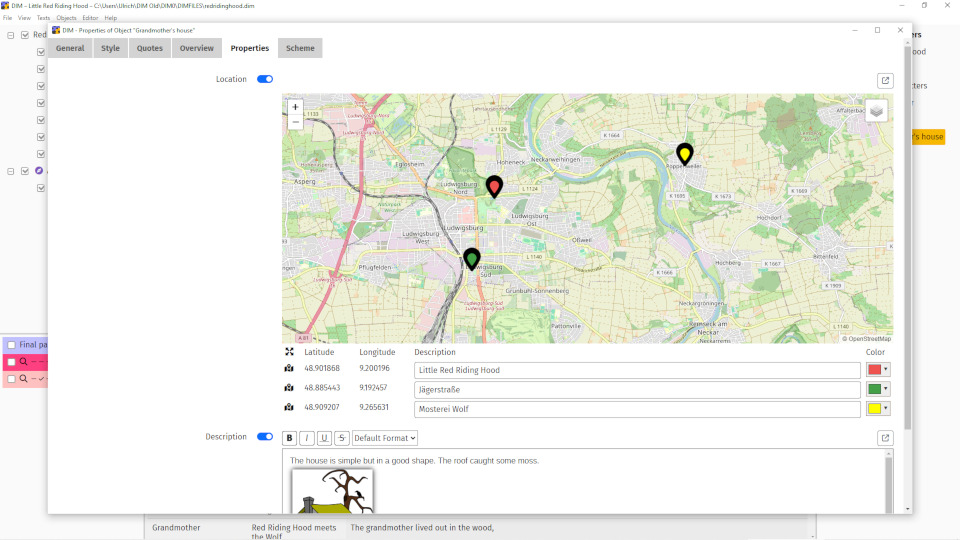
Geographical map
The map scheme type allows you to add geographical information of some place on earth to your object. You can zoom to the area of your interest and add locations as needed. Internet access is needed for the maps to display.
Add locations to the map by right clicking on it. Give them a description and a color and move them around on the map as needed. To delete a location right click on it.
File
With the file control you can add arbitrary files to your object. When you pick a file from one of your system folders a copy will become part of your project. Its content is available in the object no matter if the original file is still on your sytem or if it was taken from some other computer where the project was edited earlier.
A file is opened with the system's native application for the respective file type (say, a video player).
Please be aware that files can blow up the size of your project files considerably, so use them with care.
Attention: when you change an item's type in the scheme tab the content of the respective property will be deleted. If you change the type by accident and don't want to lose the original content, abort editing the object. As long as you do not save the object nothing is lost.
No, the list is not user extensible. But you can use as many of the provided types in an object as you wish.
The object reference table lists all text passages (quotes) in all texts currently in the editor that are connected with all currently activated objects. It thus gives an overview of the objects you are interested in in the texts you are editing.
You can use the filter input to narrow down the table of quotes to what you are looking for.
When you click on a quote in the table the relevant section in the editor is selected.
References are ordered in their natural sequence, i.e. first come the quotes of the first text in the editor, no matter what object they refer to, next come the quotes of the second text in the editor and so on.
You can reverse the order by clicking on the ordering arrows at the right end of the table header.
Use menu item File → Project Properties to open the properties window. Several tabs provide general and statistical data about the project. Also, cover information can be inserted.
Text categories are sets of properties that can be applied to texts. In the project's properties you can define a status set (concerning the maturity or progress of a text), a text type set and a user defined set.
Each text can be assigned one of the values of each category with icons showing these values in the text tree.
Initially the project categories are a copy of the global categories as defined in the settings. You can adjust them to the project's specifics.
Enter a password in the project properties window (tab Project information). After that the project will be saved encrypted and once closed can only be opened if the password is provided. Be aware that the project cannot be opened if you don't remember the password. There is no known way to recover a lost password.
Absolutely. Project files are, in essence, SQLite files that can be handeled by tools like DB Browser for SQLite. For password protected projects you need the version with SQLCipher support.
Files can be imported by using menu item File → Import → from file. Text files, HTML files and RTF files are supported. The textual content of the file will be imported to one DIM text.
Folders can be imported by using menu item File → Import → from folder. All Text, HTML and RTF files in that folder will be imported as individual DIM texts. All other files are ignored. In the settings you can control if the folder structure is reflected in the DIM import or if the import is a flat list.
Use menu item File → Import → from web page to open a browser like window. Load the web page by entering its URL or following a link in an already opened page. As soon as the page has fully loaded (might take a while) press the Import-Button.
Depending on the website the import might be more or less of what you could see and read in the browser.
If you want to import just parts of a web page, you can select the respective text passage and copy/paste it into a DIM text.
Use menu item File → Import → from DIM file to open the project you want to import from. Select the
you want to import. As text collections, texts, objects and formats are interdependent some of them might be imported automatically.
One of the ideas of DIM is that you should concentrate on content, not appearance. It is hard enough to write good texts and keep track of all aspects of the elements you are writing about. How this may finally look on a sheet of paper or in a publication should be the least of your worries.
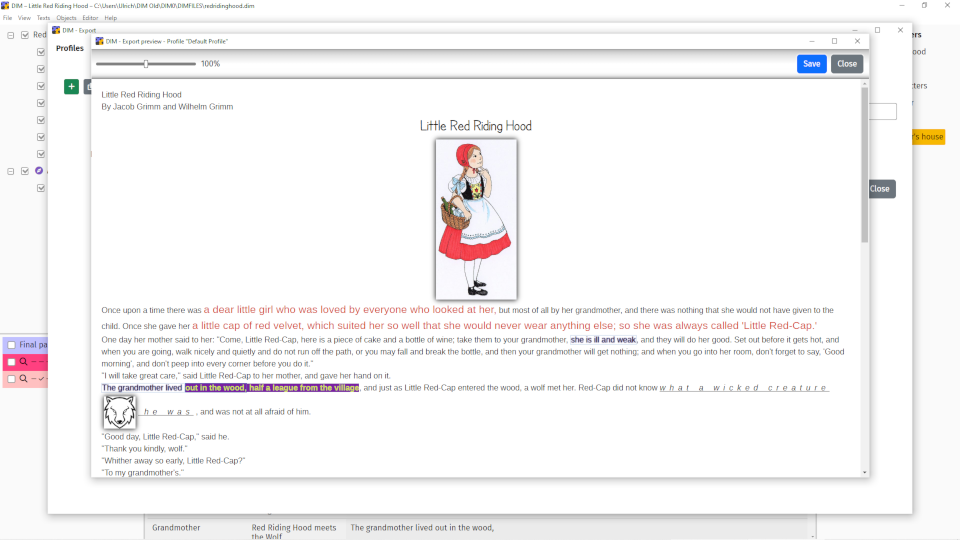
Thus, only when exporting you decide what becomes part of your product -- which texts, which objects and what metadata. Don't expect fancy formatting such as page numbers or footnotes. Your standard word processor or desktop publishing program is a good place to feed the export into to give it the final polish.
Almost always you'll want to export your texts, but you can do more:
The export includes what you put in the editors. You can enter and style regular text. It will be included in the export as is. To insert some project specific information use one of the placeholders from the select box top right of the editor. Be aware that the cursor must be placed in the editor before placeholders can be inserted.
To tailor an export profile use the various editors and options that are provided in the different tabs of the export window:
Document tab
In this tab you set the format type and edit what the export includes on a project level. In most cases you need the exported Texts placeholder which is a placeholder for the sequence of all texts as defined in the Texts tab.
If you want to add object information to your export, also put the exported Objects placeholder somewhere in the document editor.
Texts tab
In this tab you select if all texts should be included in the export or only the activated ones. To export the text content, add the Text Content placeholder. Use additional placeholders for meta data.
Object markings tab
When exporting texts you can highlight the embedded objects if you wish. For one you can use the object styling in yout texts, much the same as it appears in the editor (with some limitations in RTF export). Additionally, you can enclose each text passage connected to an object with some extra text. You could prepend the object's name, for example and enclose the passage in parantheses.
Choose what objects you want to highlight -- all objects, the activated objects or none at all. In the latter case the other settings in that tab have no effect.
Objects tab
You can add a list of objects in your project if you include the exported Objects placeholder in the editor of the document tab. In this tab you set what objects to include and what is included in the object list for each object.
You can choose between list style and table style for object content and text quotes. If you use the Object content as list placeholder you must populate the Object properties tab.
Object properties tab
This tab is only needed if you include the Object content as list placeholder in the Objects tab. For each property of each object this list is filled with what you set in the editor of this tab.
There are three formats you can choose:
| Format | Styles | Images | Preview |
|---|---|---|---|
| Text | none | no | yes |
| HTML | all | yes | yes |
| RTF | most | yes | no |
No, not with the export function. But you can print the editor's content to a PDF file. Or, first export to RTF or HTML and go to PDF from there using your browser or word processor.
You can print what's visible in the editor. More details in the Editing section.
Yes, this is possible by importing the project. See the Imports section.
Global settings are default settings that initially apply to all new projects. They are stored in a central place on your computer.
Project settings are specific to individual projects, overruling the respective global settings. They are stored within project files.
As long as you do not touch a specific project setting the respective global value will be effective in the project. Typically, project settings are used sparsely as you want to tailor the global settings to your best fit in the first place. But of course you can do it any other way.
DIM is designed to give the user a maximum of flexibility for organizing his or her writing process. While certain features and design options may be welcome by some they could be useless or even annoying for others.
It may take a while to find the best setup individually but in the end you will hopefully find yourself at home in DIM.
Standard categories are default text categories (such as text status) that are used initially in all new projects. They can be adapted to the project specific needs in the project properties window (menu item File → Project properties).
Yes, this is possible by importing the project. See the Imports section.
© Ulrich Kühn 2025
DIM source code on Github, licensed under GPLv3
If you like my software consider buying me a coffee ☕